October 2, 2026
How to Connect Every Account, Step by Step
Never used these apps before? This is the complete, plain-language guide to connecting Telegram, Bale, Eitaa, Rubika, Soroush Plus, YouTube, Aparat and WordPress to SocialsPro — the exact same steps you will find under Accounts → 💡 Tips.
By the Socials Pro Team
SocialsPro can post to all of your channels for you — but first it has to meet them. Connecting an account is the one-time job of telling SocialsPro: "this is my channel, and here is the key that lets you post there."
You do it once per channel. After that you can write a single post and send it everywhere.
Some platforms ask you to make a little helper robot (a bot), one asks for a password made just for apps, and one asks you to log in with your phone number. None of it is hard — but the steps are picky, so follow them in order.
The same steps are inside the app
Everything below is exactly what you will also find in the app, under Accounts → Add account → 💡 Tips. If you ever lose your place, open that window and the steps for the platform you picked are right there.
What you need before you start
- A SocialsPro account, and a few quiet minutes.
- Your own login for each platform you want to connect.
- To be the owner or an admin of the channel, group, page or site you want to post to. If you are not an admin, the platform will refuse.
Ready? Find your platform below.
 Telegram
What is Telegram? A chat app. To let SocialsPro post to your Telegram channel for you, you first need to make a little helper robot inside Telegram. Telegram calls these robots bots — think of yours as a tiny messenger that carries your posts into your channel. Making one is free and takes about two minutes.
Before you start
- The Telegram app on your phone or computer, and your own Telegram account.
- You must be the owner or an admin of the channel or group you want to post to.
Step by step
- Open Telegram and search for @BotFather.
- Send
/newbotand follow the prompts to create a bot. - Copy the bot token (looks like
123456789:ABCdefGHIjklMNOpqrsTUVwxyz). - Add your bot as an admin to your channel/group.
- Paste the token below, click "Test connection" to check it, then click "Add account".
💡 Tip: The bot must be an admin to post messages.
 Bale
Bale
What is Bale? Bale is an Iranian chat app, and it works almost exactly like Telegram. You make a bot the same way, then make that bot an admin of your channel.
Before you start
- The Bale app, and your own Bale account.
- You must own the channel or be an admin of it.
Step by step
- Open the Bale app and search for @BotFather.
- Send
/newbotand follow the prompts. - Choose a name and username for your bot.
- After creation, send
/setjoingroupsto BotFather and enable the bot to join groups. - Copy the bot token that BotFather gives you.
- Go to the channel where you want to add the bot.
- Open the channel admin panel.
- Add your bot as an administrator and grant it the necessary permissions (especially the ability to post messages).
- Return to this website, paste the token, click "Test connection" to check it, then click "Add account".
 Eitaa
Eitaa
What is Eitaa? Another Iranian messaging app. Here there is one big difference: you do not make your own bot. Instead, the bot @sender is provided for you, and you add it to your channel as an admin. The "key" you need comes from a separate website called EitaaYar.
Before you start
- The Eitaa app, and your own Eitaa account.
- You must be an admin of the channel or group.
- A free account on eitaayar.ir.
Step by step
- Open the Eitaa app and go to your channel.
- Open the channel admin panel and add the bot @sender as an administrator.
- Grant it the "send messages" permission.
- Go to the website eitaayar.ir and create an account.
- In your Eitaayar dashboard, go to the "API" section.
- Copy the API token shown there — a long string of letters and digits (never an
@username, a channel name or a link). - Return to this website, paste the token into the Token field, click "Test connection" to check it, then click "Add account".
⚠️ Important Note: If you want to send messages to a specific channel or group, you must first register that channel/group in your Eitaayar dashboard. The platform will give you a numeric channel_id (chat id) — that id is the value to paste as the chat id here, and the bot @sender must be an admin of that same channel/group or Eitaa will refuse the post.
🚫 An invite link cannot be used as the chat id: a link such as https://eitaa.com/joinchat/… only opens the Eitaa app to join the group (it redirects to et://join?invite=…), so there is no chat behind it for the API to post to. For a group: open the group in Eitaa → add @sender as an admin with the “send messages” permission → in your Eitaayar dashboard add that group → then use the chat id that panel lists for it.
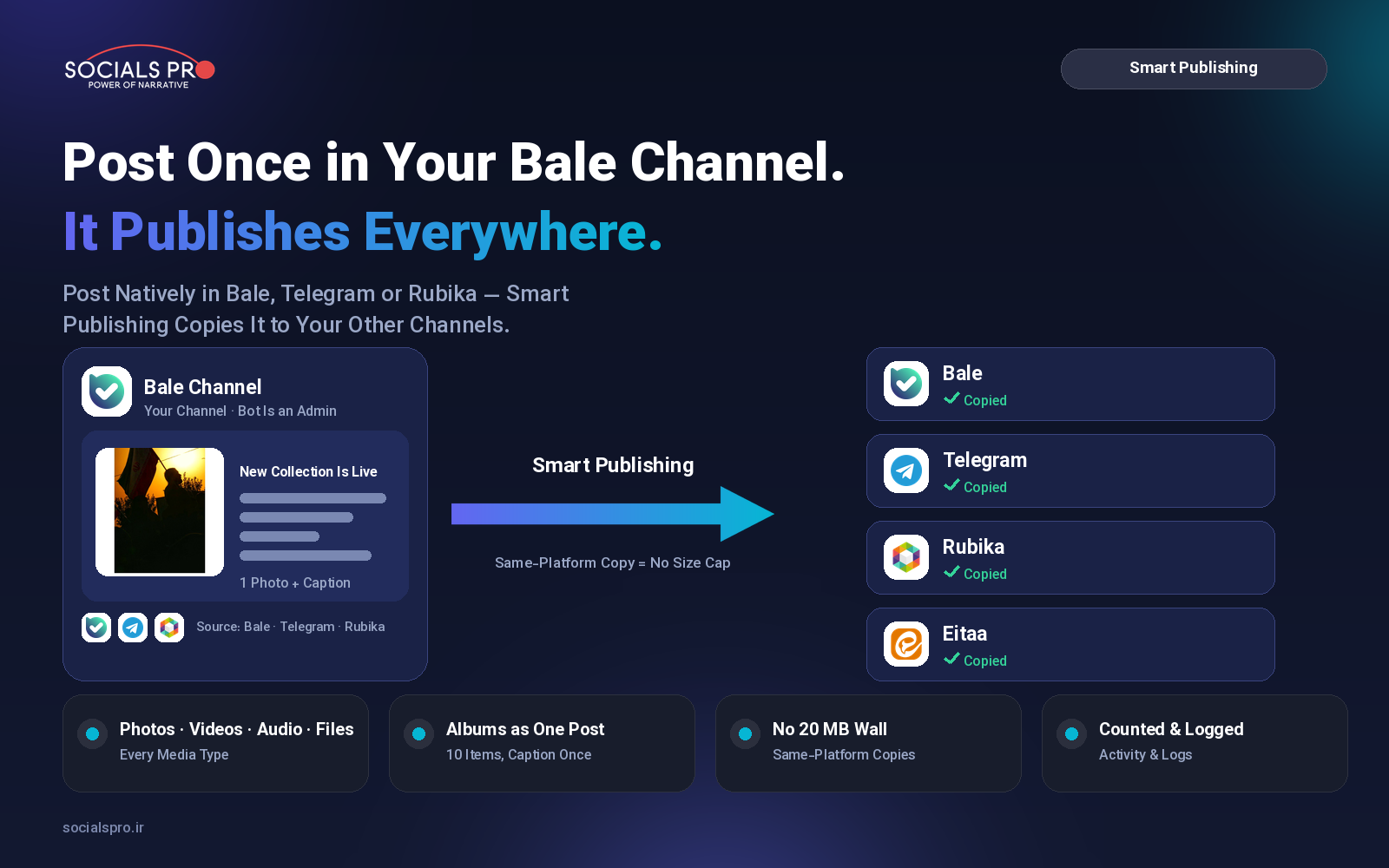
💡 Several photos: EitaaYar's API sends ONE file per message (it has only getMe, sendMessage and sendDocument), so a post with several photos normally arrives as consecutive messages, with the text on the first photo. To post them as ONE message instead, tick “Combine several photos into ONE image” on this Eitaa account — the photos are composed into a single image (a grid; nothing is cropped) and the post is one message.
 Rubika
What is Rubika? An Iranian messaging app. You create a bot with a special "bot creation bot", then add your bot to your channel as an admin.
Before you start
- The Rubika app, and your own Rubika account.
- You must be an admin of the channel.
Step by step
- Open Rubika and search for the bot creation bot.
- Follow the instructions to create a new bot.
- Copy the bot token (UUID format, e.g.,
7d9a...12a4). - Add your bot as an admin to your channel.
- Paste the token below, click "Test connection" to check it, then click "Add account".
💡 Several photos: Rubika's bot API has no album method at all (its documented list has no sendMediaGroup), so a post with several photos is published as consecutive messages. To post them as ONE message instead, tick “Combine several photos into ONE image” on this account — the photos are composed into a single image (a grid; nothing is cropped) and the post is one message.
 Soroush Plus
What is Soroush Plus? An Iranian messaging app. This one is different from the rest: you do not use a bot. You log in with the phone number that owns the channel, and then pick the channel from a list.
Before you start
- The Soroush Plus app, on the phone whose number owns the channel.
- You must be an admin of the channel.
Step by step
- Enter the phone number of the Soroush Plus account that owns your channel.
- Click "Send Code" — you will receive a login code in your Soroush Plus app.
- Enter the code and click "Verify".
- Select the channel you want to post to from the dropdown.
- Click "Test connection" to confirm.
- Click "Add account" to save the connection.
⚠️ Note: This connection uses a user account, not a bot. The account you log in with must be an admin of the channel.
 YouTube
What is YouTube? The video site. Connecting it works differently: instead of pasting a token, you let Google give SocialsPro permission to upload to your channel.
Before you start
- A Google account with the YouTube channel you want to upload to.
- Access to the Google Cloud Console (it is free for this).
Step by step
- Visit the Google Cloud Console.
- Create a new project or select an existing one.
- Enable the YouTube Data API v3.
- Create OAuth 2.0 credentials of type Web application (Desktop app type only accepts
http://localhostand fails withredirect_uri_mismatchon this server). - Add the redirect URI
<your-host>/api/yt/callbackto the client (e.g.https://socialspro.ir/api/yt/callback). - Download the
credentials.jsonfile. - Upload it below and click "Add account", then click "Connect to Google" and finish the sign-in.
💡 Tip: You'll need to verify your app with Google before publishing.
 Aparat
What is Aparat? The Iranian video platform. Connecting it is simple: you make an API key in your Aparat account and paste it in.
Before you start
- An Aparat account, logged in.
Step by step
- Go to Aparat.com and log in.
- Go to your account settings / developer section.
- Generate an API key for your account.
- Copy the API key and paste it below.
- Click "Test cookie" to verify, then click "Add account".
💡 Tip: Aparat is the Iranian video platform — perfect for local content.
 WordPress
What is WordPress? A website builder. Connecting WordPress lets SocialsPro publish your posts as blog posts on your own site.
Before you start
- Your WordPress site's address (its URL) and the username you log in with.
- Access to your WordPress admin (the
/wp-adminarea).
Step by step
- Make sure your WordPress site has the REST API enabled (it is by default on WordPress 4.7+). Verify it by visiting
{site-url}/wp-jsonin a browser — it should return JSON. - Log into your WordPress admin and go to Users → Profile (or Users → All Users → your user → Edit).
- Scroll to Application Passwords → click Add New, give it a name (e.g. "Socials") and click Add New.
- Copy the generated password (format like
abcd EFGH ijkl mnop) — it is shown only once. - Enter your Site URL (with https, e.g.
https://mysite.comor including a subfolder likehttps://mysite.com/blog) and your WordPress username. - Paste the generated application password, click Test WordPress to check it, then click "Add account".
💡 Tip: Use an Application Password — not your normal login password. If the test says "Could not reach", check the Site URL (with https://) and that {site-url}/wp-json loads.
⚠️ Note: The first line of each post becomes the title, the rest becomes the content. An attached image becomes the post's featured image.
That's all eight
Once an account is connected, it stays connected until you remove it or its key is revoked. From then on you can write one post and send it to any of your channels — that is what SocialsPro is for.
Stuck on a step? Open Accounts → Add account → 💡 Tips and the exact same steps are waiting for you, right next to the field you need to fill in.